What's new
New features and changes in NOALBS Cloud, newest first.
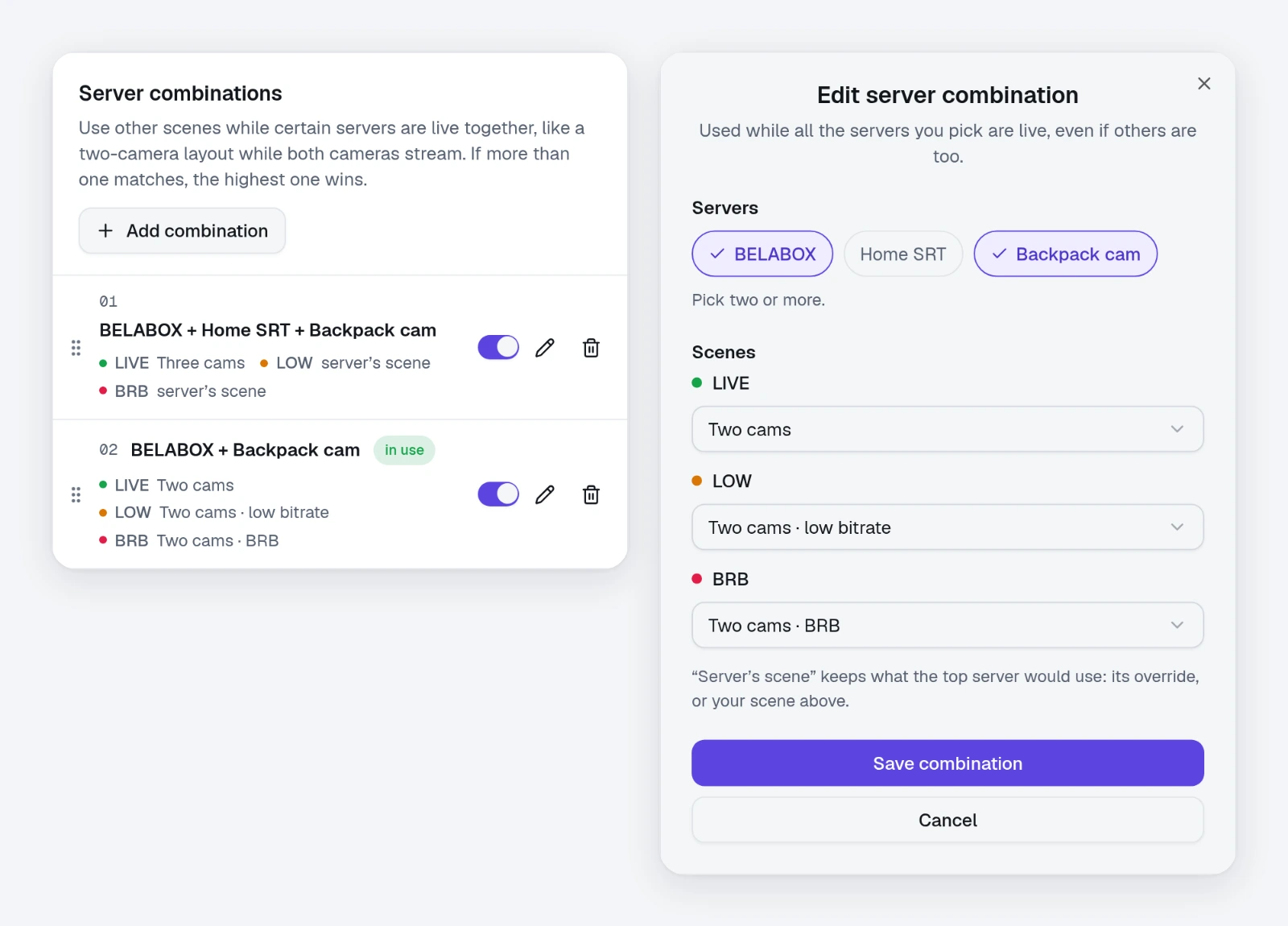
Streaming through more than one server at once? NOALBS can now use different scenes while certain servers are live
together. Say your BELABOX and a backpack cam both stream: show a two-camera layout while both are up, and go back to
your normal scenes as soon as one drops.
To set one up, open a switcher, go to Scenes and tap Add combination under Server combinations. Pick two
or more servers, then the LIVE, LOW and BRB scenes to use while all of them are live.
- All of its servers live: a combination is used while every server in it has a feed, even if other servers are
live too.
- The highest one wins: when more than one combination fits, the one highest in the list is used. Drag them to
change the order. If one can never be used because a combination above it always matches first, it says so.
- LIVE or LOW still follows your top server, like before. Leave a scene on Server's scene to keep what that
server would show.
- BRB: when every server drops, the BRB scene of the combination last in use is shown.
- No flip-flopping: switching onto or off a combination waits as many checks as a LIVE to LOW switch
(Checks before switching), so an uplink that keeps dropping in and out doesn't flip your layout back and forth.
The combination on air shows in use. Each has a switch to turn it off without deleting it, and removing a server
also removes the combinations it's in.
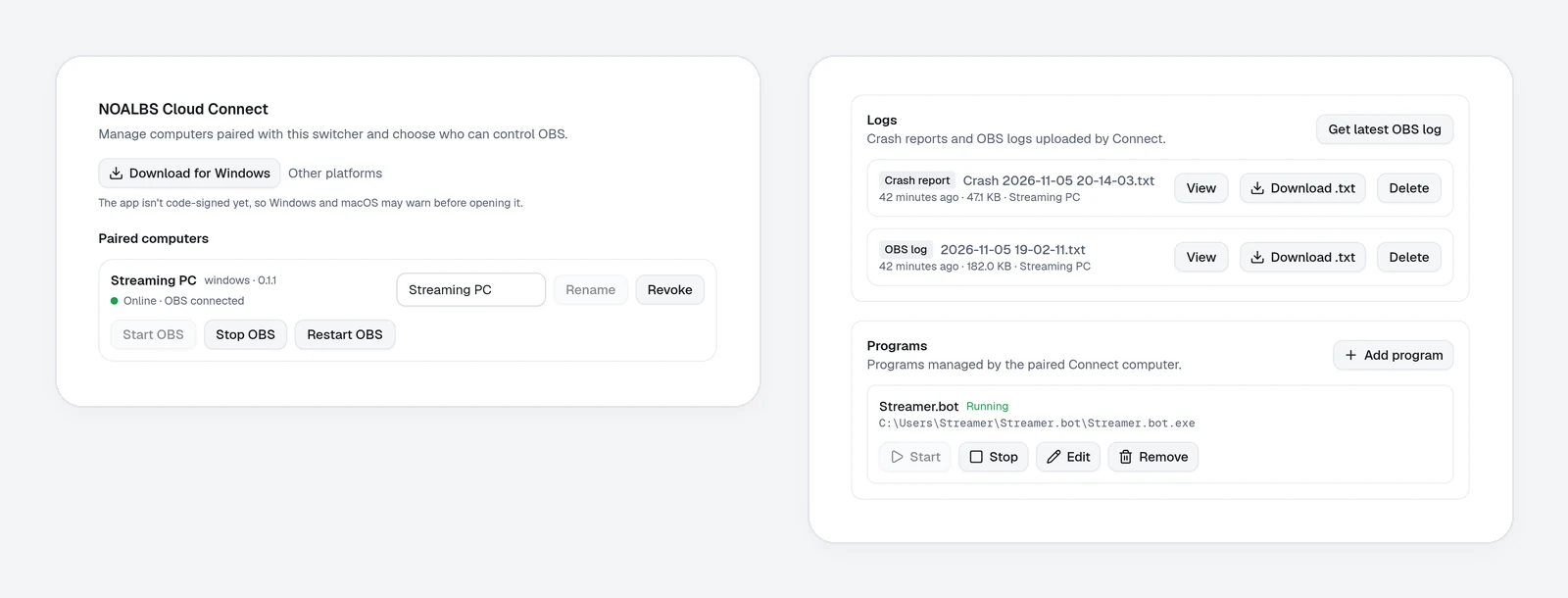
NOALBS Cloud Connect is a new desktop app for Windows, macOS and Linux. It connects OBS to your switcher like
the browser source does, and because it runs on your PC, it can do more:
- Start, stop and restart OBS from the dashboard. The Live page offers Start OBS when OBS isn't running or
has crashed.
- The OBS watchdog restarts OBS after a crash or when it stops responding, and can go live again for you.
- OBS logs and crash reports upload to the dashboard, so you can see what went wrong without asking for the
file. Stream keys and IP addresses are hidden unless you choose to show them.
- Programs like Streamer.bot can start and stop together with OBS, or from the dashboard.
- Several OBS setups on one computer, each paired to its own switcher.
- Updates are checked automatically and installed when you click Install and restart.
The browser source isn't going anywhere: Connect is just another way to connect, so use whichever you like.
To try it, open your switcher's Settings page and find the NOALBS Cloud Connect card. Download the app for
your computer, add a setup and pair it. The Connect guide walks
through it step by step.
The switcher's owner decides who can start, stop and restart OBS, see its logs, and manage programs. Programs
are owners-only by default. Keep these tight: they let people run software on your PC.
It's brand new
This is the first release, so expect some rough edges. The app isn't code-signed yet, so Windows and macOS warn
you the first time you open it; the guide shows how to get past that. If something doesn't work the way you
expect, please tell us on Discord. It helps a lot.
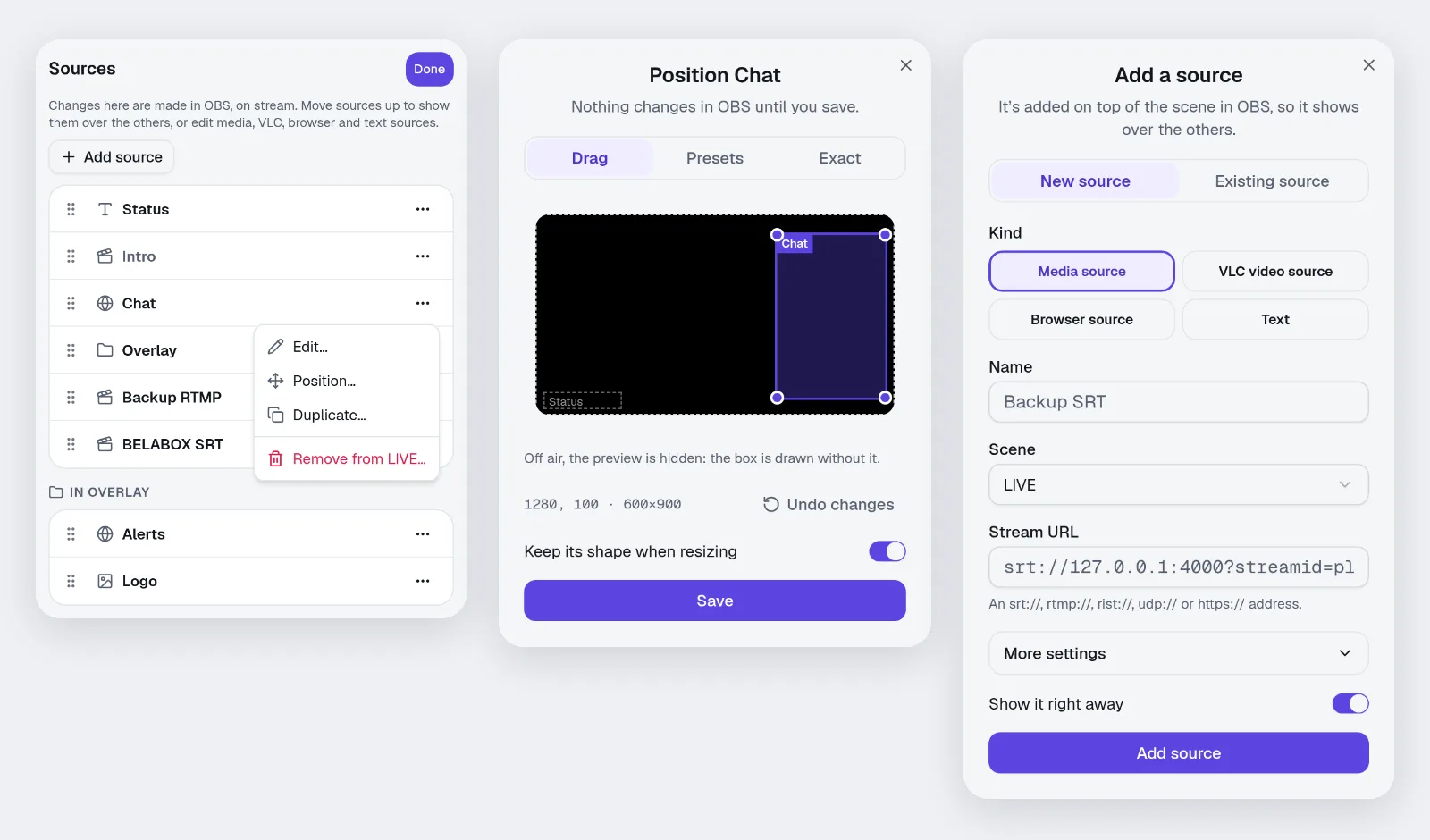
The Sources and Scenes cards on the Live page can now change OBS itself, not just show and hide what's
there. Tap Edit on either card to start. Tapping a source or scene outside Edit mode still only shows, hides or
switches it, so nothing gets moved or removed by accident on a phone.
In the Sources card's Edit mode you can:
- Add a source: a media source (SRT, RTMP, RIST and other stream URLs), a VLC video source, a browser source or
a text source. You can also add a source or scene you already have in OBS to another scene.
- Edit media, VLC, browser and text sources: the stream URL, the page, the text and its font, and their other
settings. URLs show hidden, since they often hold a key.
- Position any source: drag it and pull its corners on a picture of your screen, use a preset like "fit the
screen" or "a quarter of the screen, bottom right", or type the exact size. The OBS preview shows behind it when
you're allowed to see the preview.
- Reorder sources by dragging the handle on the left, like your stream servers.
- Duplicate a source with its settings, filters and position, or remove it from a scene.
In the Scenes card's Edit mode you can add a new scene, or remove one. The scene on air and the scenes NOALBS
switches to (LIVE, LOW, BRB and the others) can't be removed until you pick other ones.
Admins and owners can add, edit, duplicate and remove. Operators can reorder and position sources. Adding, editing,
positioning and removing show in the activity feed.
A few things stay in OBS: picking files from your PC (sources here play stream URLs, and ones that already play a
file keep it), adding to or removing from groups, and the order of your scenes.
This page lists what's new in NOALBS Cloud, newest first. When something big ships, you'll see it once in a corner
of your dashboard; close it and it won't come back.
You'll also find it in the account menu under What's new. For questions and ideas, come say hi on
Discord.
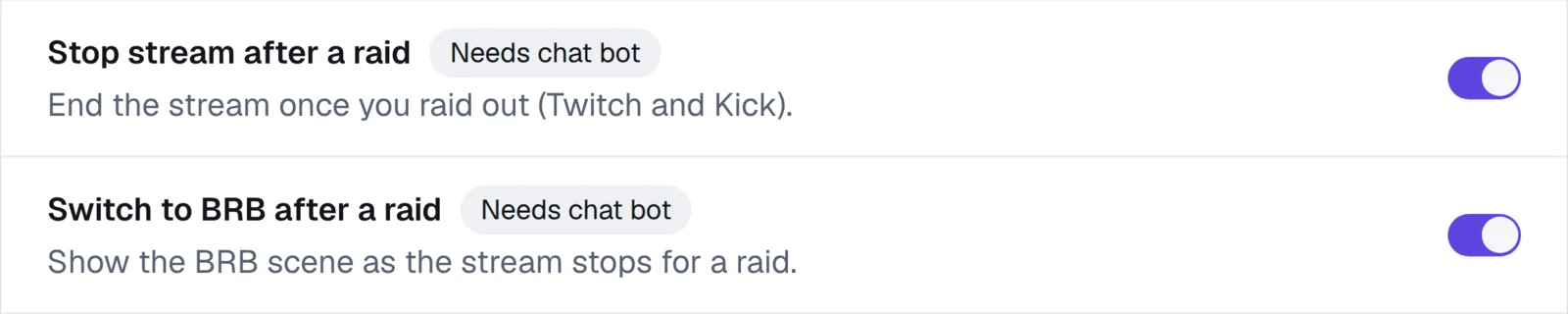
If you use Stop stream after a raid, NOALBS can now switch to your BRB scene as the stream stops, so the stream
ends on BRB instead of whatever was on air when you raided out.
To turn it on, open a switcher, go to Switching and turn on Switch to BRB after a raid under
Start, end & raids. It needs Stop stream after a raid on and the chat bot connected, and works on Twitch and
Kick.
It uses the BRB scene of the stream server you're streaming through if that server has its own, and otherwise the
switcher's BRB scene from Scenes.
The dashboard and the chat bot are now available in Dansk, Deutsch, Español, Français, Italiano, 日本語, 한국어,
Norsk bokmål, Nederlands, Polski, Português (Brasil), Русский, Svenska, Türkçe, Українська, 简体中文 and 繁體中文,
as well as English.
- Dashboard: open the account menu at the bottom left and pick one under Language. Auto follows your
browser's language.
- Chat bot commands: the bot now replies to commands in your language too. Open a switcher, go to
Chat & commands and pick a Bot language. The commands you type stay the same; only the bot's replies
change. They're whole sentences, and numbers are written the way your language writes them. They build on the
translations from the original NOALBS, whose translators are credited on the licenses page.

Translated with AI
The translations were made with AI help and most haven't been checked by a native speaker yet, so some of them may
be wrong or read oddly. If you spot one, let us know by
opening an issue on GitHub or on
Discord. You can also fix it yourself: the translations are plain .po files, and
CONTRIBUTING.md explains how.